Sesame is currently in closed beta. If you would like to try out Sesame ahead of launch, let us know
View, sort & filter
Last modified on
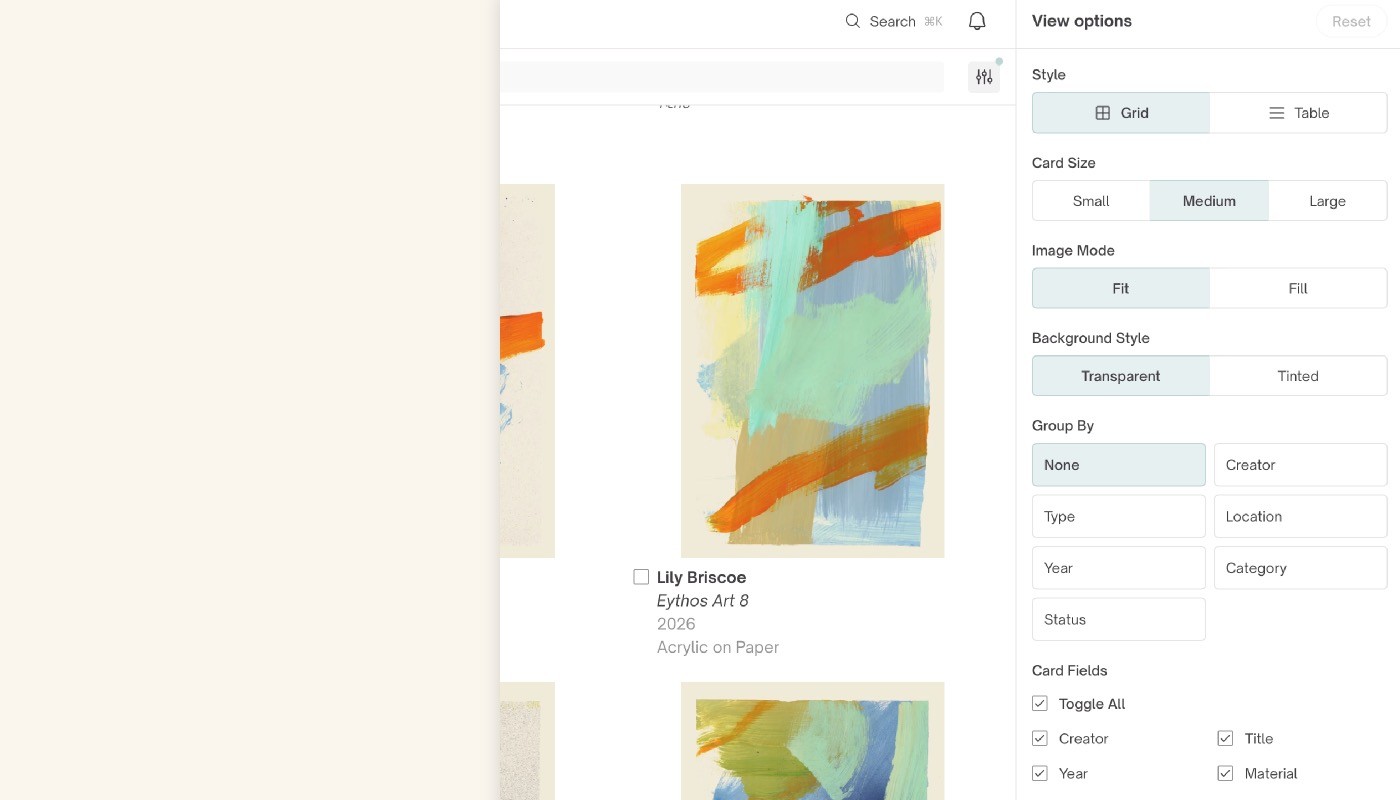
Customising Your Display: View Options, Sorting, & Filtering
Sesame gives you total control over how your collection is displayed. Whether you want a visual gallery layout, a data-focused table, or precise filtering for a specific project, you can customise your view settings in just a few taps.
View options
Use the View options controls to adjust the visual layout and card details across your collection.
Style:
Grid: Displays your works as visual cards—ideal for browsing artwork imagery.
Table: Formats your collection into a structured list—best for quick data auditing.
Card size: Choose between Small, Medium, or Large grid cards to balance visual impact with screen real estate.
Image mode:
Fit: Displays the entire image within the card frame without cropping.
Fill: Expands the image to fill the card boundaries completely.
Background style: Select Transparent for a clean minimal backdrop or Tinted to add subtle framing contrast.
Group by: Structure your layout into organised sections based on Creator, Type, Location, Year, Category, or Status (or select None for a continuous grid).
Card fields: Customise which metadata appears directly on your artwork cards. Check or uncheck Creator, Title, Year, Material, Dimensions, and Item ID—or use Toggle All to quickly enable or disable all fields.
Sorting your collection
Change the sequence of your assets to focus on specific parameters. Tap any attribute to sort, and tap the arrow icon to reverse the sort direction.
You can sort your assets by:
Basic metadata: Creator, Title, Year, Material, Size, Category, or Item code
Timeline: Date added or Date updated
Valuation & attributes: Value, Status, or Colour
Random: Shuffles your collection to give you a fresh visual perspective
Filtering your assets
Filters help you narrow down your collection to find exact pieces based on dynamic criteria:
Type: Filter by asset classification (e.g., Artwork).
Category: Focus on specific mediums like Ink, Mosaic, or Painting.
Creator: Search or select specific artists in your collection.
Provenance: Search former owners, galleries, or institutions associated with your works (e.g., Collection of Mr Alan Smithee, or Rory Wheeler Gallery).
Material: Filter by physical media such as Paint, Acrylic paint, or Paper.
Location: View works currently assigned to specific physical locations (e.g., Eythos Hong Kong, On Loan, or Unknown).
Quick reset: Need to return to your standard view? Tap the Reset button at the top-right of the View options, Sort, or Filter headers to clear your adjustments instantly.

