Sesame is currently in closed beta. If you would like to try out Sesame ahead of launch, let us know
Annotating & editing images
Last modified on

Sesame includes an interactive full-screen viewer equipped with a built-in image editor and markup suite. Whether you need to crop installation backgrounds, redact confidential details, adjust perspective, or annotate condition notes, you can refine your images directly within the app.
Entering the full-screen viewer
To open the viewer, tap or click on any primary or supporting image on the asset details page. The image will expand to fill your screen.
Inspection and viewer controls
Use the top toolbar to adjust your viewing experience:
Background toggle: Switch the canvas background between light and dark (moon/sun icon) to optimise contrast depending on the artwork’s colour palette.
Info & original file resolution: View image metadata or switch to the full-resolution master file; ideal for inspecting large, high-detail TIFFs or ultra-high-definition photographs.
Zoom & pan: Use the zoom controls, slider, or pinch gestures to examine fine brushwork, condition details, or signatures up close.
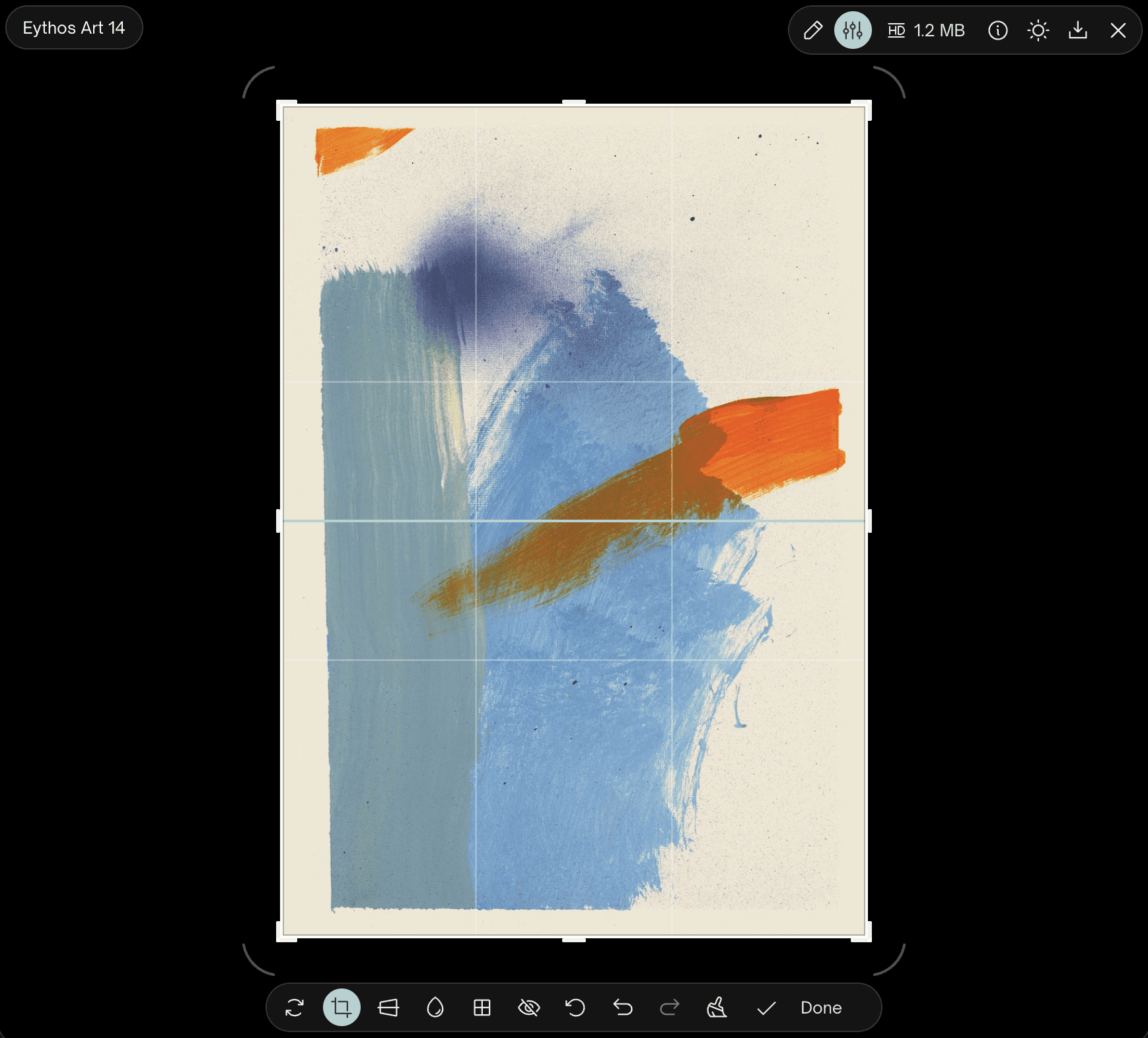
Editing images with the image editor
Tap the Edit image icon (sliders symbol) in the top toolbar to launch the image manipulation suite. The floating toolbar at the bottom provides tools to adjust your image layout and privacy:
Rotate: Turn the image clockwise or counterclockwise to correct orientation.
Crop: Trim unwanted margins, outer borders, or background framing.
Perspective: Correct keystoning or camera angle distortion to ensure rectangular works appear square and true.
Blur: Soften sensitive background details or out-of-focus areas.
Pixelate: Obscure background elements or confidential information with a pixelated grid effect.
Redact: Permanently black out sensitive sections, labels, or personal information before sharing.
Undo, redo, and non-destructive saving
Undo & redo: Step backward or forward through your edits using the arrow controls on the bottom toolbar.
Revert to original: Tap the broom icon at any point to clear all uncommitted changes and return to the original image state.
Saving & downloading edits: Tap Done or the Download icon to save your changes or download a local copy. Even after saving your edits in Sesame, your changes remain non-destructive: you can return to the editor at any time and revert back to the original uploaded master image.
Annotating with the markup pen tool
For quick condition checks, restorer discussions, or highlighting specific details for colleagues:
Tap the Annotate icon (pen symbol) in the top toolbar to enter markup mode.
Select your pen stroke color and size.
Draw or annotate directly onto the image (e.g., circling a surface mark or detail).
Use the bottom-left controls to undo, redo, or clear your annotations.
Tap the Download icon to save an annotated copy to your device without overwriting your main artwork file in Sesame.

