Sesame is currently in closed beta. If you would like to try out Sesame ahead of launch, let us know
Search
Last modified on

Sesame provides two distinct search tools to help you quickly locate artworks, Selections, and artists across your account. Understanding the difference between global search and collection search ensures you can find what you need instantly.
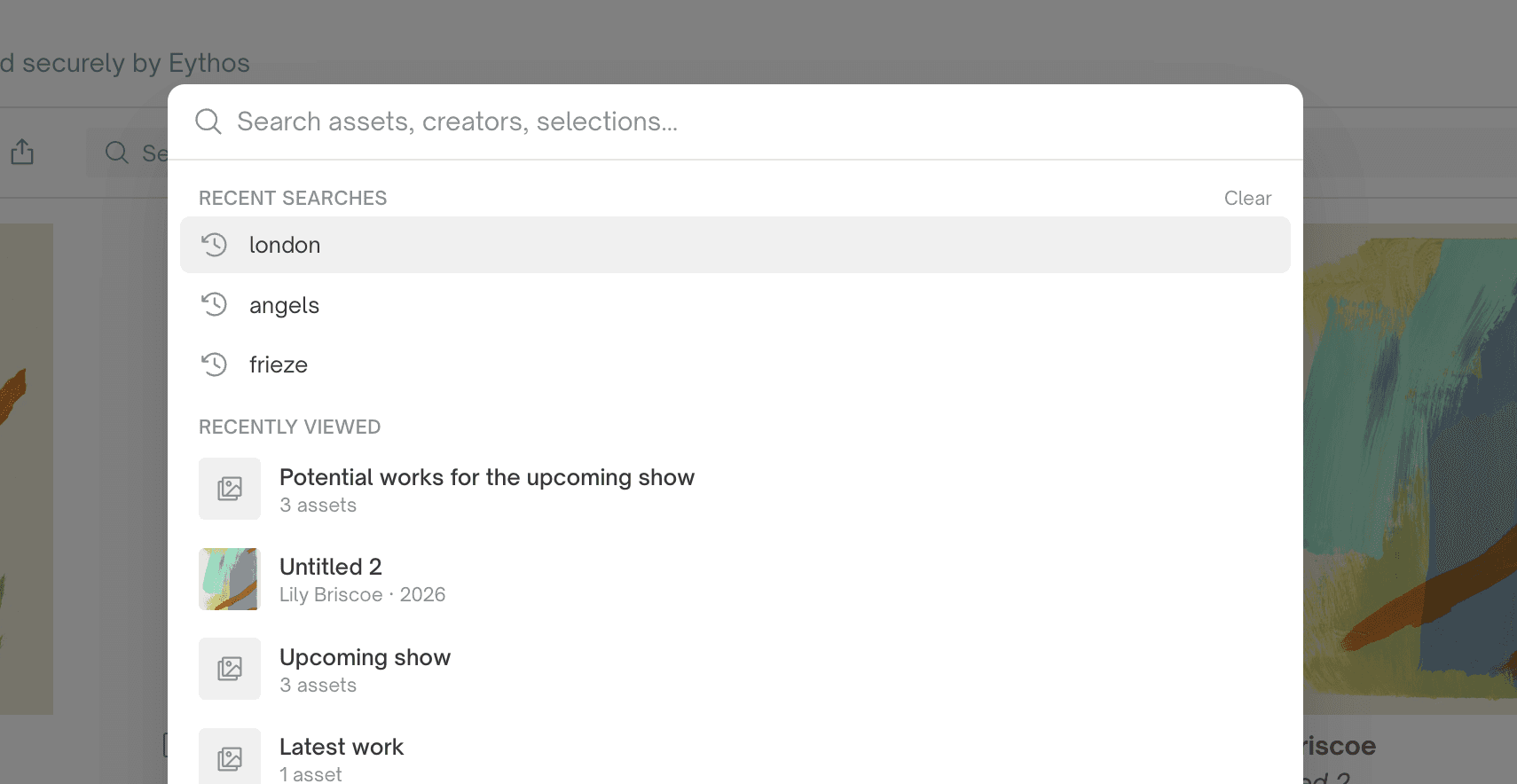
Global search
Located in the top-right corner of the navigation header (and accessible via the keyboard shortcut ⌘K or Ctrl+K), the global search bar queries your entire Sesame workspace.
Use global search to find artworks and Selections by title, artist name, materials, size, description etc.
Because global search scans all areas of your workspace, it is the best tool when you want to jump directly to a specific section or artwork from anywhere in the app.
Collection search
Located directly above the main inventory listing, the collection search bar acts as an in-page filter.
Use collection search to:
Filter the current view: Quickly isolate specific works within your main collection view (such as searching for a specific artist name or title in the active list).
Refine listings alongside filters: Combine in-page search terms with your active sort and filter parameters to narrow down long lists of assets.
Unlike global search, the collection search bar only queries assets within the immediate collection table or grid view. Note that your search is retained even if you navigate away to a different page and return to the Collection page.
Summary tip: Use the global search bar (top right) to navigate anywhere in your account, and the collection search bar (above the list) to quickly filter what you see on screen.

