Sesame is currently in closed beta. If you would like to try out Sesame ahead of launch, let us know
Snapshot
Last modified on

When you want to quickly share a work from your collection without sending an entire document or web link, the Snapshot feature generates a clean, beautifully formatted image card of your asset, complete with its core metadata.
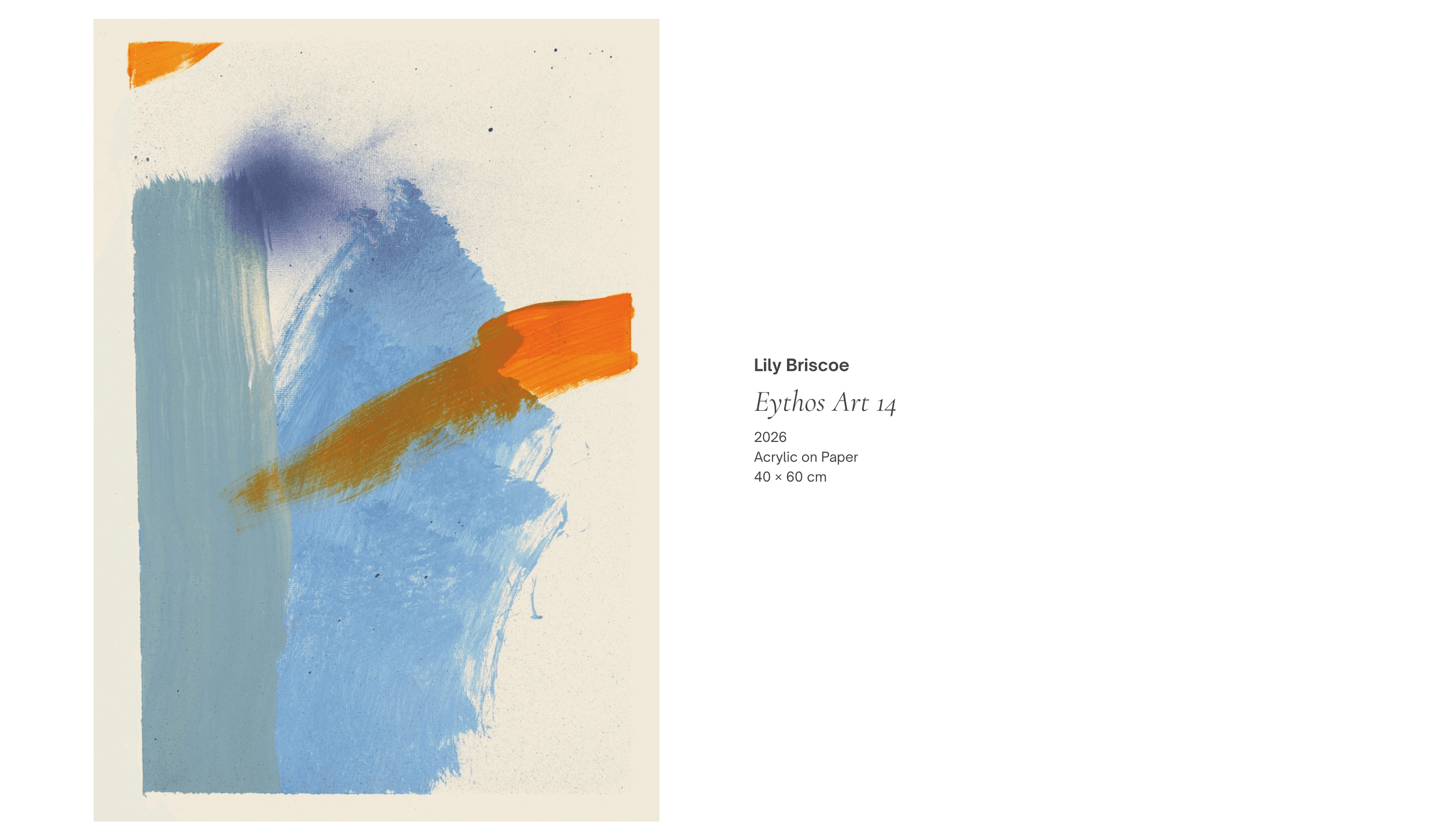
What is included in a snapshot?
A snapshot pairs the artwork's primary image with a refined typographic layout displaying essential details:
Artist / Creator
Title
Year of creation
Medium & materials
This provides advisors, collectors, or colleagues with an immediate, elegant visual reference that includes all vital tombstone data in a single image file.
How to create a snapshot
Navigate to the asset page for the piece you wish to share.
Locate the action toolbar in the bottom-left corner below the main artwork image.
Tap the Snapshot icon (the aperture/shutter symbol).
Sharing options by device
Depending on whether you are using Sesame on a desktop browser or a mobile device, your sharing options will adapt automatically:
Desktop (macOS & Windows)
Tapping the Snapshot icon opens a quick-action menu with two options:
Copy to clipboard: Copies the generated image card directly to your clipboard, allowing you to paste it instantly into emails, presentations, or chat applications.
Save to computer: Downloads the image file directly to your device's downloads folder.
Mobile (iOS & Android)
On mobile devices, tapping the Snapshot icon opens your native system share sheet:
Direct messaging: Send the image directly via Messages, WhatsApp, Signal, or Mail.
Save to photos: Save the image directly to your device's photo library for later reference.
Pro-tip: Hover over the tombstone details (artist, title, year, medium) on the asset page to reveal a quick Copy button, allowing you to instantly copy the formatted text to your clipboard without opening an edit screen

